After you have installed and activated your MUA Retouch UXP Panel, follow the steps below to install and activate its custom Tool Presets. You only need to do this once.
Step 1: Locate the Tools Folder
Inside the downloaded and unzipped installation package, locate the MUA_UXP_Tools folder. Run the MUA UXP Tools Installer.jsx script — it automatically places the custom MUA_UXP_Presets.tpl file into the correct Presets folder so Photoshop can use it with your panel.
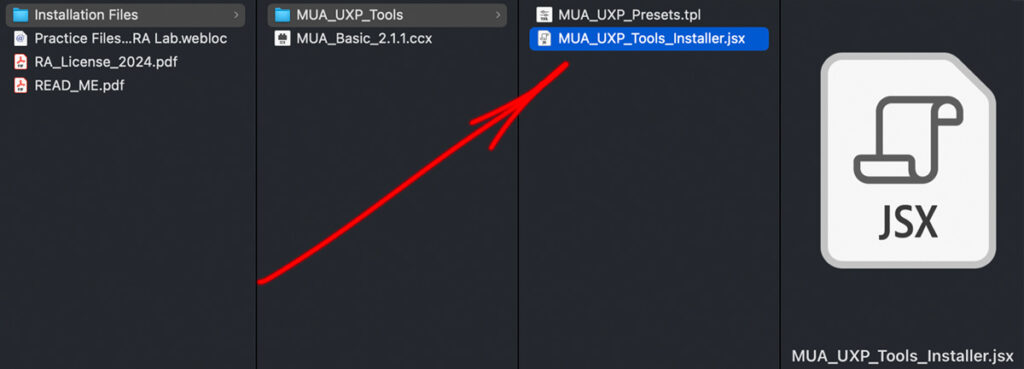
Your installation package may contain other files and folders depending on the panel you purchased.
Step 2: Install the Custom Tool Presets
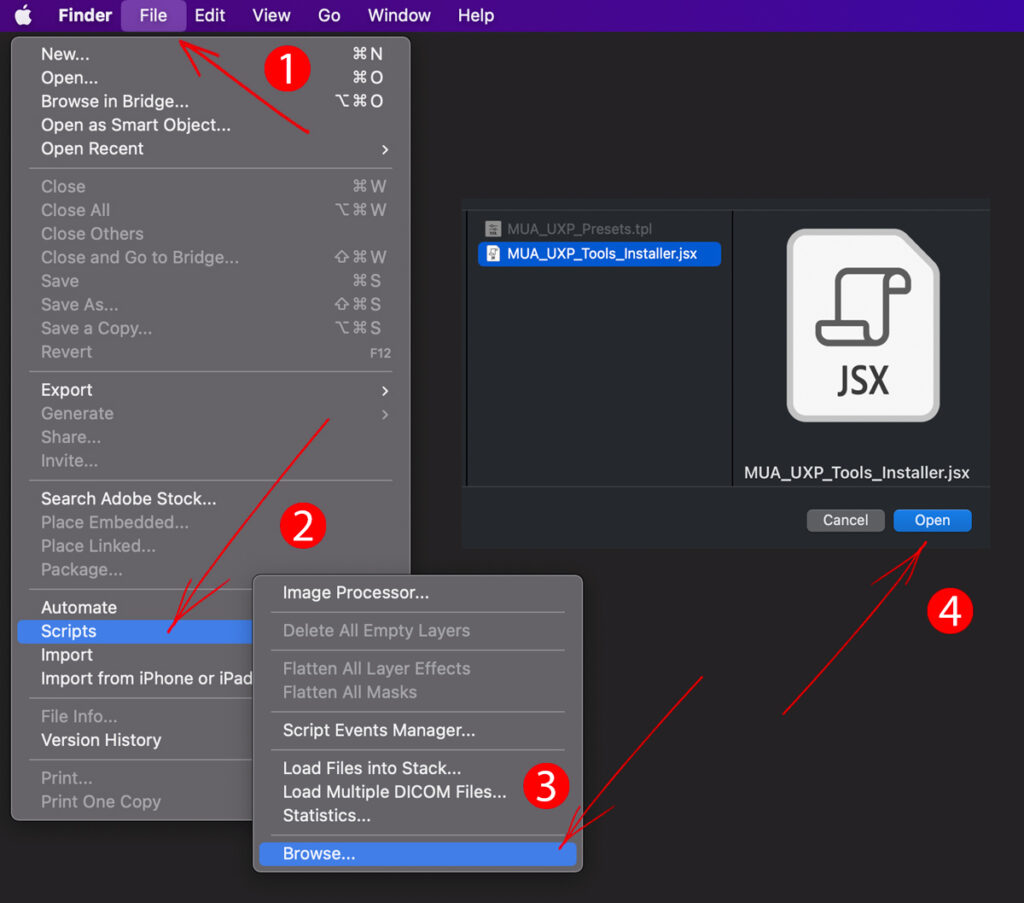
Double-click the MUA_UXP_Presets.tpl file — it should add the custom tools to Photoshop automatically. If that does not work, run the installer script instead:
- In Photoshop, open File → Scripts → Browse.
- Locate the MUA UXP Tools Installer.jsx script file and press Open.
- When the Presets installed notification appears, press OK.
Troubleshooting
If you did not get the "Presets installed" notification, the automatic installation did not complete. This usually means the Adobe folders on your computer have limited permissions, which prevents the script from placing the preset file. You have two options:
Option 1: Change folder permissions.
Allow Everyone to Read & Write in the destination Presets folder:

~/Applications/Adobe Photoshop <version>/Presets
C:\Program Files\Adobe\Adobe Photoshop <version>\Presets
Option 2: Place the file manually.
Follow the manual Tool Presets placement steps.
Step 3: Activate the Tool Presets
Important: Restart Photoshop before activating the custom Tool Presets.
- In Photoshop, open the Tool Presets panel via Window → Tool Presets, or click the Tool Preset Picker icon in the Options Bar.
- Click the Panel Options icon in the upper-right corner and select MUA_UXP_Presets from the list of available presets.
- Select Append to add these Tool Presets to your existing ones.
- If asked, select Load as Tools.
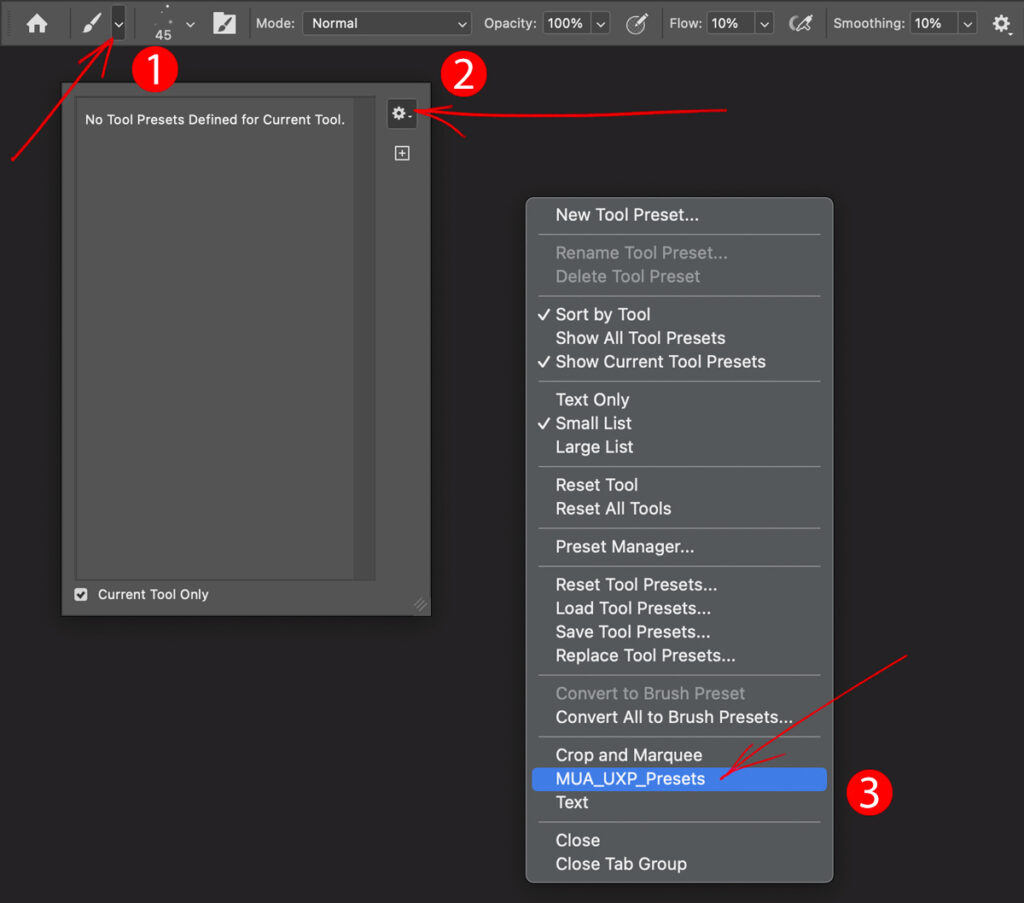
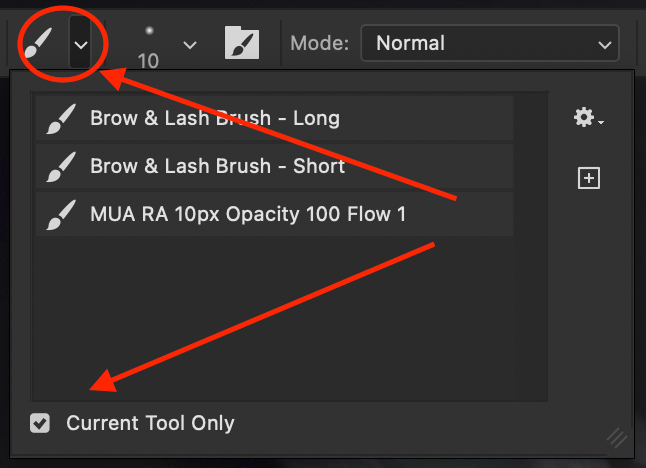
Once activated, you will see the following Tool Presets in the Tool Preset Picker for the Brush tool:
- Brow & Lash Brush — Long
- Brow & Lash Brush — Short
- MUA RA 10px Opacity 100 Flow 1
That is all — you are ready to go.
Dedicated Support Team
If the FAQ does not resolve your issue, please contact our friendly Support Team: Submit a Support Ticket.