After installing your UXP Panel via the Adobe Creative Cloud app, you will be prompted to enter the email address associated with your Member Account.
Your license allows activation on up to two (2) computers simultaneously — Mac OS or Windows — as per the Software Product License. If you need to use the panel on more than two computers at the same time, please contact our Support Team.
When to Reset Your Activations
If the license activation prompt appears in Photoshop after an update or subscription renewal, and you have already used both activations, you will need to reset them before you can activate again.
How to Reset — Step by Step
Important: Before resetting activations, please ensure your panel's Maintenance and Support Subscription is indeed shown as Active in the Subscription tab of your Member Account. If your Subscription expired a while ago and you need to re-activate it, please reach out to our Support Team.
Step 1: Open the Reset Page
You will find the Reset Your Panel License Activation button at the bottom of your Member Account. You can bookmark the reset page to get there quicker.
Step 2: Reset the Activation
On the License Activation Reset page, press the Reset button for the relevant panel.
Important: Each panel's activations can only be reset once every 24 hours. Do not press Reset multiple times in quick succession — this may cause browser errors and require you to clear your cache before trying again.
If you get an error after pressing Reset: clear your browser's cache and try again. See: How to Clear Your Browser's Cache.
If the reset is urgent and you cannot wait, access the Reset page from a mobile device or another computer using Incognito or Private Browsing mode — this bypasses any cached data without needing to clear anything.
You can also access your Member Account quickly via the Your Account button at the top of the panel.
Step 3: Re-trigger the Activation Prompt
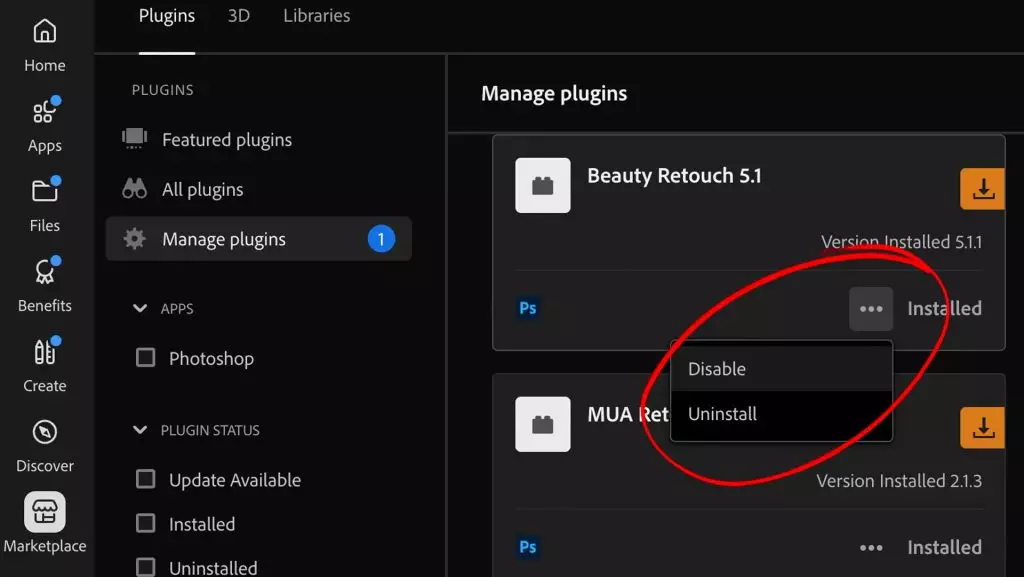
If the Photoshop activation prompt does not appear after resetting, go to Creative Cloud App → Manage Plugins → ... (the three dots next to the panel) and select Disable, then Enable. This will trigger the activation prompt when you return to Photoshop.
Panel Not Visible in Photoshop?
Important: Do not reinstall and re-activate the same panel multiple times on a single computer — this will exhaust your license activations unnecessarily.
If your panel is not visible in your Photoshop workspace, go to the Plugins menu and select the panel — it will reappear in your workspace without needing to reinstall or reactivate.
Dedicated Support Team
If the FAQ does not resolve your issue, please contact our friendly Support Team: Submit a Support Ticket.