Updating from a later version? To upgrade your UXP Panel to the latest v5 version, follow these installation steps instead.
Use the guides below to install, activate, or update your RA UXP Panels. Make sure your Creative Cloud app is updated before you begin.
Important: Be sure to install and activate the panel's additional features – brushes, actions, and tool presets – from Step 5 below. Without that step, the brush and actions buttons on the panel will not work.
Before You Begin: Compatibility
The RA Panels require Photoshop® 2022, v23.3 or later. AI-powered features in the Beauty Retouch Panel require Photoshop® 2024, v25.3 or later.
Both Windows and Mac OS are supported under a single license.
Make sure your Creative Cloud app is updated to the latest version before installing. For the most reliable workflow, use the current stable release of Photoshop.
Important: Adobe's Photoshop BETA builds are test versions that change frequently before official release. They are not officially supported and may cause UXP panel installation or compatibility errors, or keep wasting your time by using up your license activations: Panel keeps asking to reset activations. Use the current stable release instead.
Step 1: Download & Unzip the Installation File
The Beauty Retouch Panel installation package (ZIP file) is located in your Member Account → Downloads tab. Download and unzip it in the Downloads folder (Mac) or the root folder of the C: drive (Windows).
Important: Run the installation file (.CCX) from the same drive where Adobe Photoshop and the Creative Cloud app are installed — typically the C: drive on Windows or Macintosh HD on Mac. Adobe software will only recognize the .CCX file if it is located on the same drive as your Adobe programs.
Step 2: Double-Click the CCX File
Double-click the BR_[version].CCX file to open the Adobe Creative Cloud → Manage Plugins dashboard.
- Press Install on the non-marketplace plugin notification.
- Press OK on the standard third-party developer notification.
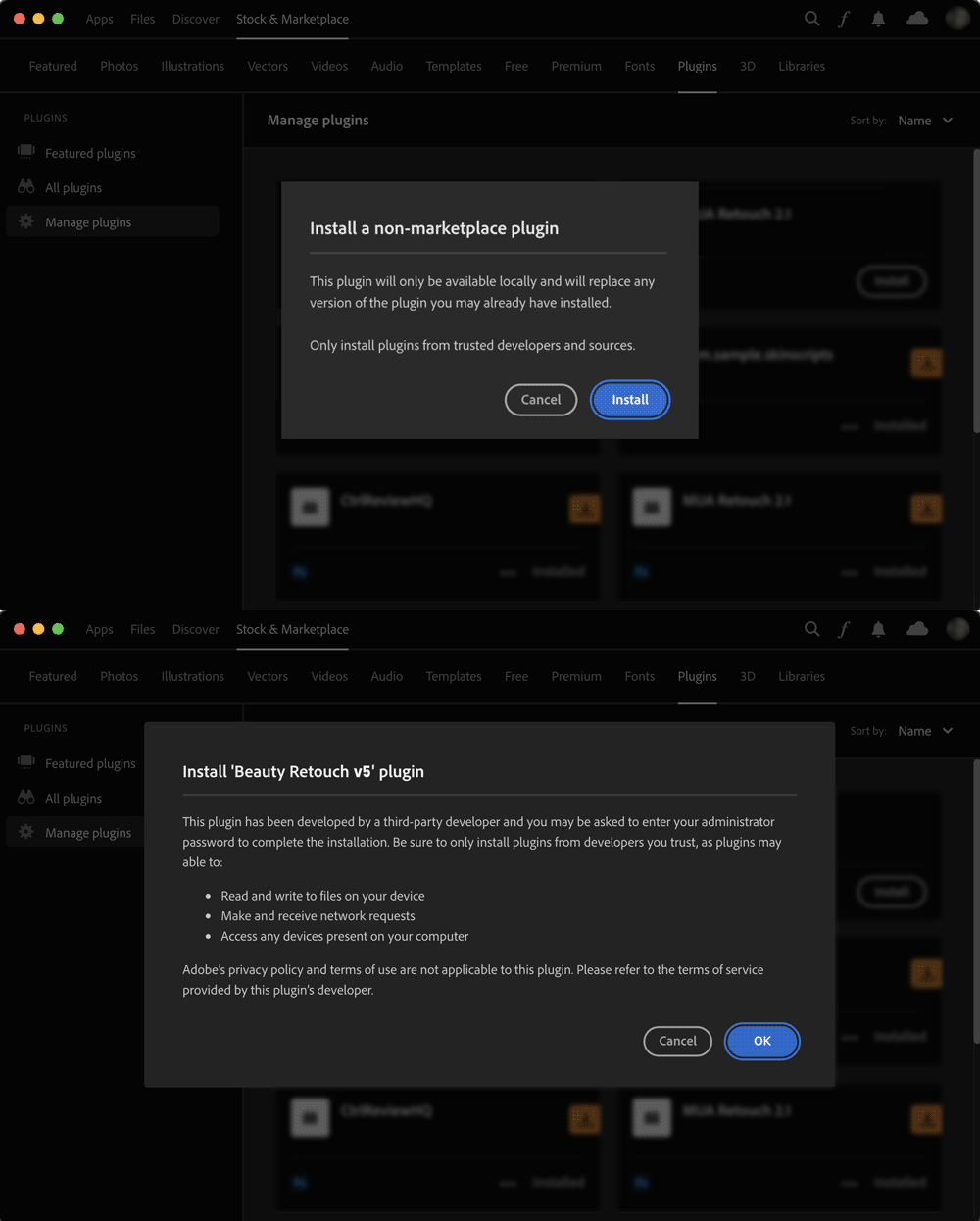
You can keep or uninstall the previous UXP version of the panel. If you keep it, you may need to reset your panel license activations.
Updating the same version? When updating within the same version line (for example, Beauty Retouch 5.1.0 to 5.1.3), Creative Cloud automatically replaces the old version with the new one.
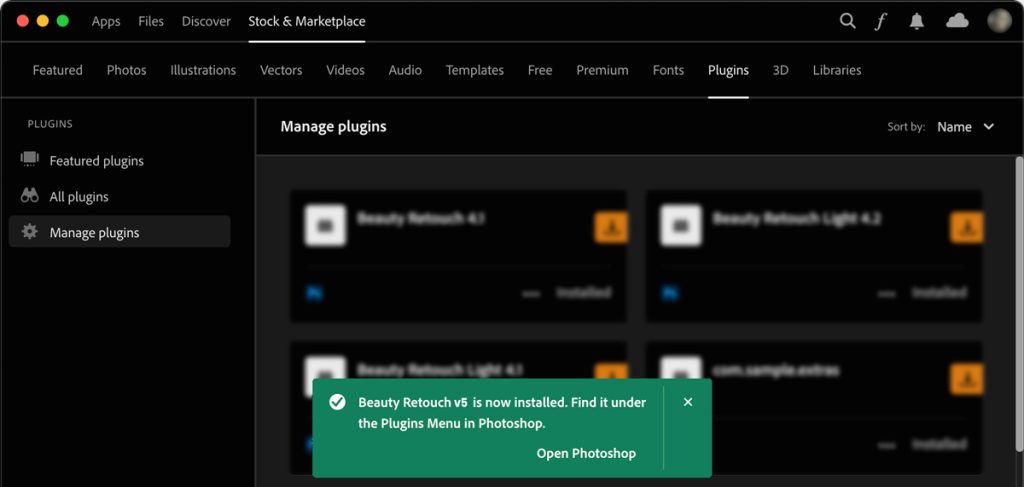
Step 3: Open Adobe Photoshop
Click Open Photoshop. The panel should appear by default; if it does not, find it under the Plugins menu.
Step 4: Activate Your License
In the pop-up dialog in Photoshop, enter the email address associated with your RA Lab Member Account and press OK to activate your panel.

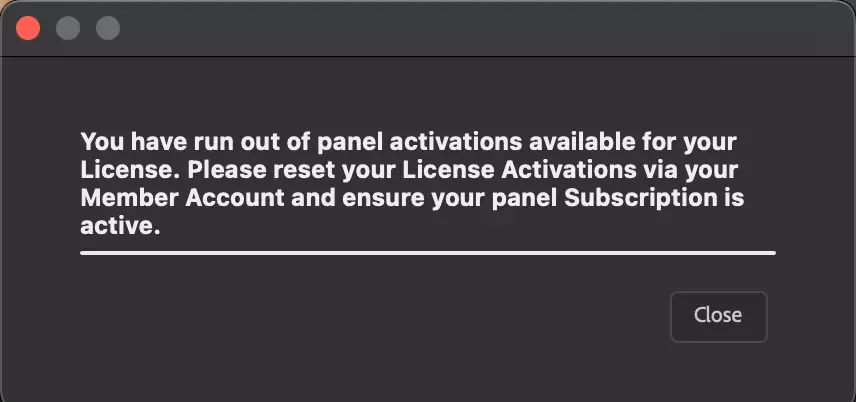
Important: If you have already activated your panel on two computers, you have used up your license activations and your email will be rejected. Reset your activations using the steps below.
Reset Your License Activations
If Photoshop rejects your email even though your Maintenance & Support subscription is Active (check here), reset your activations: Reset Your Panel Activations.
Step 5: Activate the Panel's Custom Features
Once the panel is installed, activate its custom Brushes, Actions, and Tool Presets. Follow these instructions precisely: Install Brushes, Actions & Tool Presets — Beauty Retouch Panel.
Important: When replacing your Beauty Retouch UXP with the latest Beauty Retouch v5, follow the Step 5 instructions on this page instead.
Need Help Installing?
If you run into any issues, see the UXP Panels Installation Troubleshooting guide. The most common issue is an outdated Creative Cloud app — make sure it is updated to the latest version and relaunch it before installing.
Dedicated Support Team
If the FAQ does not resolve your issue, please contact our friendly Support Team: Submit a Support Ticket.